Split seam
Print a part wider than the bed as two halves that find each other.
Cut pin and bolt holes across the centre plane of the whole part, then split it. Both halves get matching holes. 1 mm steel pins locate the halves; M3 bolts and glue hold them. Each half stands on its seam face to print, so the seam is a clean first-layer surface.
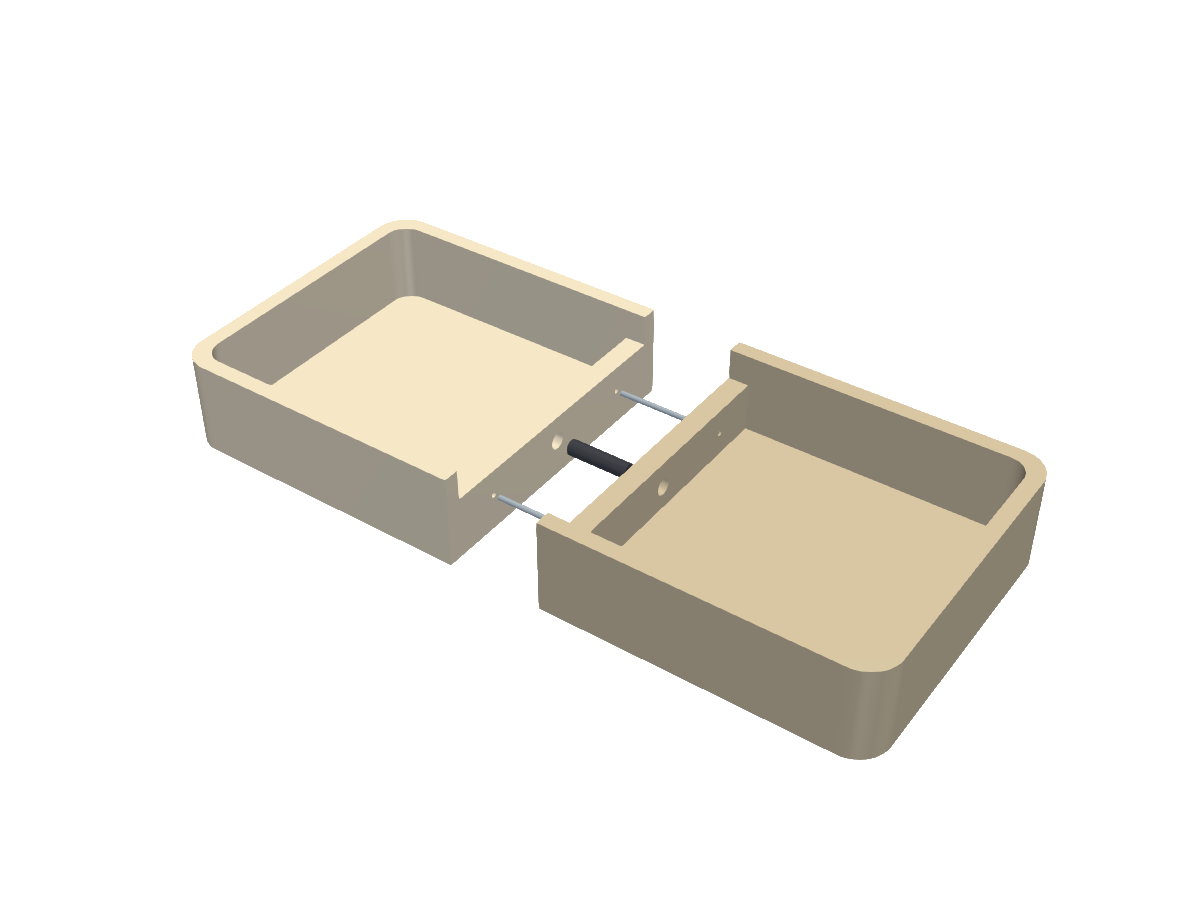 Loading 3D view
Use it in code
import { ready, seam, geom } from "partkit";
await ready();

body = geom.cutAll(body, seam.holes([[-190, 4, "d"], [-150, 4, "b"], [-110, 4, "d"]]));
const [left, right] = seam.halves(body);
What you print
- Your part, as a left and a right half
Hardware
- 1.0 x 15.8 mm steel alignment pins
- M3 bolts across the seam
- Glue
Functions
| Call | What it gives you |
|---|---|
| seam.holes(points) | Cutters across the x = 0 plane; each point is [y, z, kind] with kind "d" for a pin or "b" for a bolt. |
| seam.halves(body) | [left, right] split at x = 0. |
Frame. The seam is the x = 0 plane. Points are given as (y, z) on that plane.
Sizes
Millimetres. These defaults are the sizes that were printed; other values are untested.
| Name | Default | Meaning |
|---|---|---|
| PIN_R | 0.575 | Pin hole radius (1.15 mm hole for a 1.0 mm pin) |
| PIN_HALF | 8.2 | Pin hole depth each side |
| BOLT_R | 1.65 | Bolt hole radius |
| BOLT_HALF | 6 | Bolt hole depth each side |
Check before you print
- Each half is one solid
- Tall halves standing on a narrow seam face need an 8 mm brim and a 30 mm/s first layer
Learned the hard way
- Slicing both big halves on one plate saves no time and can raise path conflicts.
- A part that will not stick on a plate that worked yesterday usually means the plate needs washing.
Open it in Fusion 360
The scene above as a STEP file: real solid bodies, each part its own named component, in position. In Fusion 360 use File, Open, then Open from my computer. It also opens in FreeCAD, SolidWorks and Onshape. It carries the shapes, not the sizes you can change; for different sizes, use Make it above or change them in code.
Source: ts/src/seam.ts
/** Printing a part wider than the bed as two halves joined on the x = 0 plane. Steel pins locate; bolts and glue hold. */
import { xcyl, type Solid } from "./geom";
export { halves } from "./geom";

export const PIN_R = 0.575, PIN_HALF = 8.2, BOLT_R = 1.65, BOLT_HALF = 6.0;
export type SeamPoint = [y: number, z: number, kind: "d" | "b"];

/** Cutters across the seam: "d" = 1 mm pin, "b" = M3 bolt. Cut from the whole part BEFORE splitting it. */
export const holes = (points: SeamPoint[]): Solid[] =>
  points.map(([y, z, kind]) => (kind === "d" ? xcyl(PIN_R, -PIN_HALF, PIN_HALF, y, z) : xcyl(BOLT_R, -BOLT_HALF, BOLT_HALF, y, z)));